Template · 5 min read
GitHub social preview template
A free GitHub social preview template at 1280 x 640. Add the repo name, tagline, and language, then export an image GitHub can use for link cards.
Updated
The short answer
GitHub's social preview image is 1280 x 640 pixels (2:1), not 1200 x 630. Use the repo name as the headline, a one-line description, and a simple brand or language mark. Keep the file under 1 MB and upload it in the repository settings under Social preview.
- Canvas
- 1280 x 640
- Safe area
- 64 px inset
- Headline
- 6-10 words
- File size
- Under 1 MB
- Cost
- Free, no account
- Editable
- In the browser
GitHub uses a social preview image when a repository link is shared on social platforms, in chat, and in some search results. It is a different surface from an Open Graph card, with a different size and a different job: explain the repository, not a single article.
Why this layout works

ogimg.in
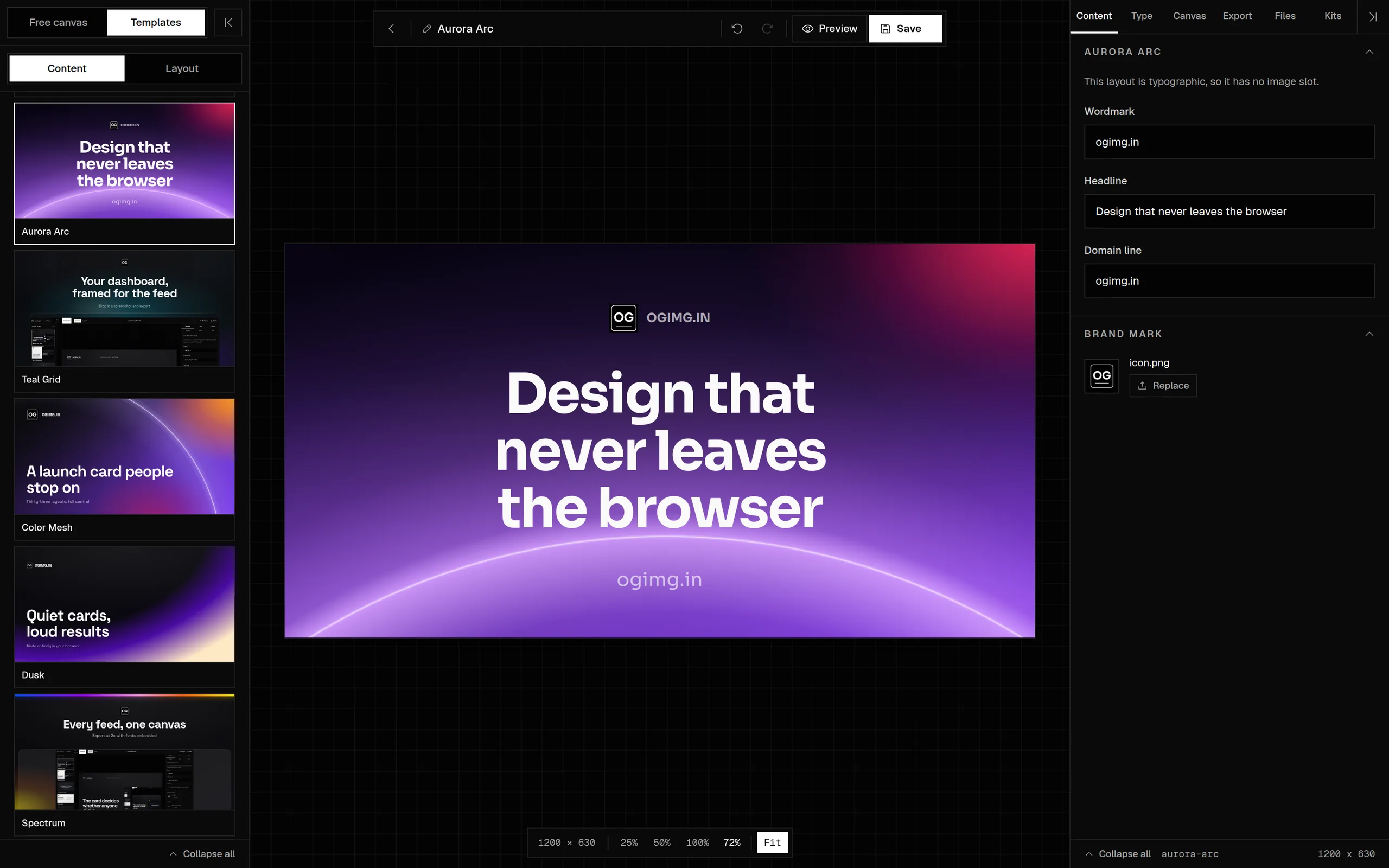
The repository name is the headline. The description is the supporting line. A language badge, a star count, or a small logo can add context, but none of them should compete with the name. This is an identity card, not a launch poster, so clarity beats decoration.
What to put on the card
- Repository name: the exact
owner/repoor the project name. Make it the largest element. - Description: one line, six to twelve words. The same line as the GitHub description works.
- Language or stack: a small badge, if it helps the right person self-select.
- Brand mark: an icon or wordmark, small and consistent.
- Visual: a code snippet, a diagram, or a screenshot. Keep it legible at 300 px wide.
ogimg.in
Read the announcement
If the project is a library, show the API call or the import line rather than a generic gradient. If it is an app, show the one screen that explains it. If it is a list or a guide, show the title and let the type carry it.
Size and upload
| Setting | Value | Why |
|---|---|---|
| Canvas | 1280 x 640 | GitHub's 2:1 social preview |
| Headline | 80-110 px | The repo name has to read at thumbnail size |
| Description | 32-40 px | One line, not a paragraph |
| Format | PNG | Crisp type and flat colour |
| File size | Under 1 MB | GitHub's limit and a faster fetch |
How to make it yours
- 01Open a template and switch the canvas to 1280 x 640.
- 02Set the repository name as the headline.
- 03Add the one-line description and a stack badge.
- 04Add a code snippet or screenshot only if it explains the project.
- 05Export a PNG under 1 MB.
- 06Upload it in the repository settings under Social preview.
Common mistakes
- Using 1200 x 630 for a 2:1 GitHub slot.
- Putting the owner name above the repo name and making it larger.
- Using a screenshot of the README instead of a designed card.
- Adding six badges that turn into noise at thumbnail size.
Frequently asked questions
What size is a GitHub social preview image?
1280 x 640 pixels, a 2:1 ratio. It is not the same as the 1200 x 630 Open Graph card, so export a separate file for GitHub.
Where do I upload the GitHub social preview?
In the repository settings, under Social preview. The image is used when the repository link is shared on social platforms and in some chat clients.
What should the GitHub social preview say?
The repository name as the headline and a one-line description underneath. Add a stack badge or a small visual only if it helps someone decide whether the project is for them.
Can I use the same image for GitHub and my site's OG card?
Not without cropping. GitHub uses 2:1; Open Graph uses 1.91:1. Make a 1280 x 640 variant and keep the 1200 x 630 card for the site.
Does GitHub generate a social preview automatically?
GitHub can use a default image, but a custom social preview gives you control over the headline, description, and brand. Upload a designed 1280 x 640 image instead of relying on the default.
Sources and further reading
Written and maintained by GxAditya
The person who builds ogimg.in. Last updated . 5 min read.
Free, no account
Make the image, then copy the tags
Start from a template or a blank canvas. Export a 1200 x 630 PNG, JPEG, or WebP, and copy the Open Graph tags from the preview panel.